Registering a Fob with PaperCut

Modified on Wed, 27 Aug at 8:58 AM

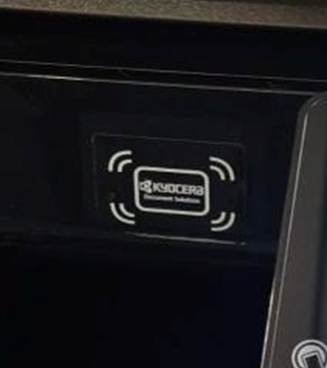
All Kyocera photocopiers are now equipped with card scanners, identified by the following:
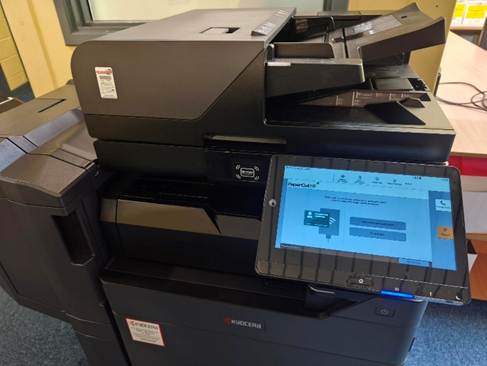
A large black printer with a screen

AI-generated content may be incorrect.

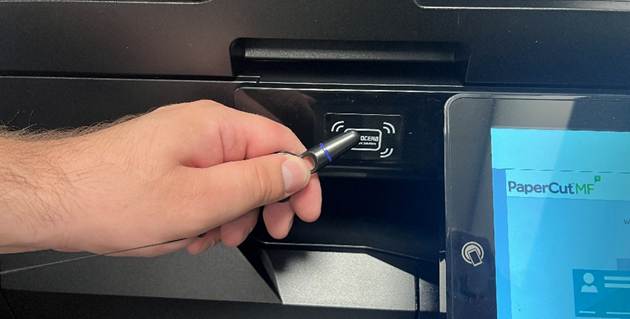
To begin the setup, scan your fob.


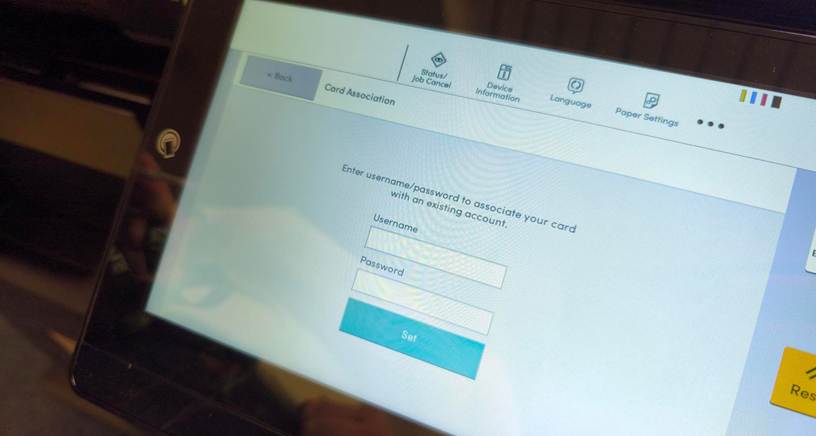
On the screen, enter your full workplace email address and password. If successful, you will see a message stating: “Successful – please complete setup from your computer.” If it fails, please try again, ensuring correct use of upper and lower case letters and any special characters on the on-screen keyboard.

A close-up of a tablet

AI-generated content may be incorrect.

Next, complete the setup on your computer.

Open your email and look for the following email - A white background with black text
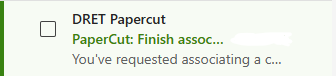
AI-generated content may be incorrect.


In the email, click on Finish Setting Up Your Card.
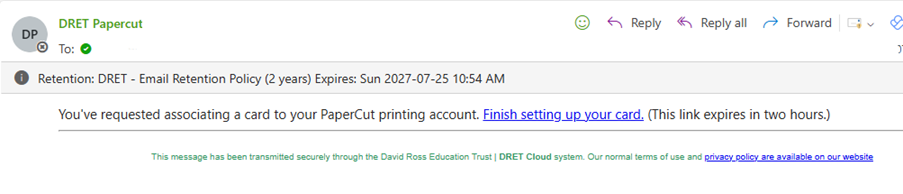
A screenshot of a computer

AI-generated content may be incorrect.


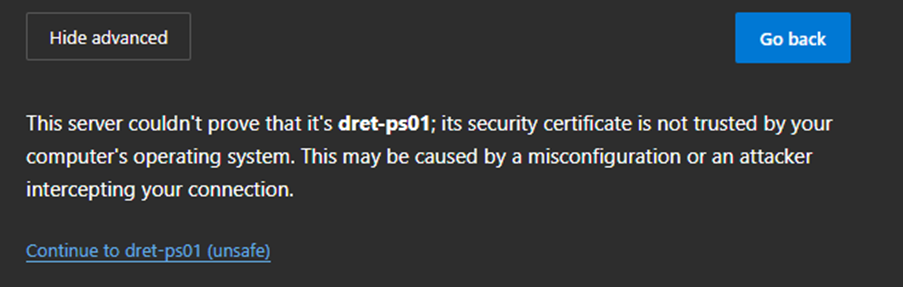
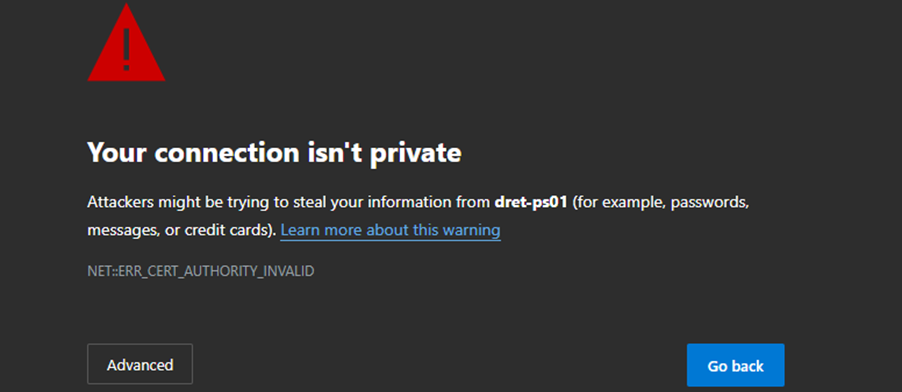
If you see the following message, don’t worry – this is expected.A screenshot of a computer error

AI-generated content may be incorrect.


Click Advanced, then select Continue to dret-PS01 (unsafe) – in this case, it is safe to proceed.

A black screen with white text

AI-generated content may be incorrect. 


Finally, click Sign in with Microsoft to complete the setup.A screenshot of a login screen
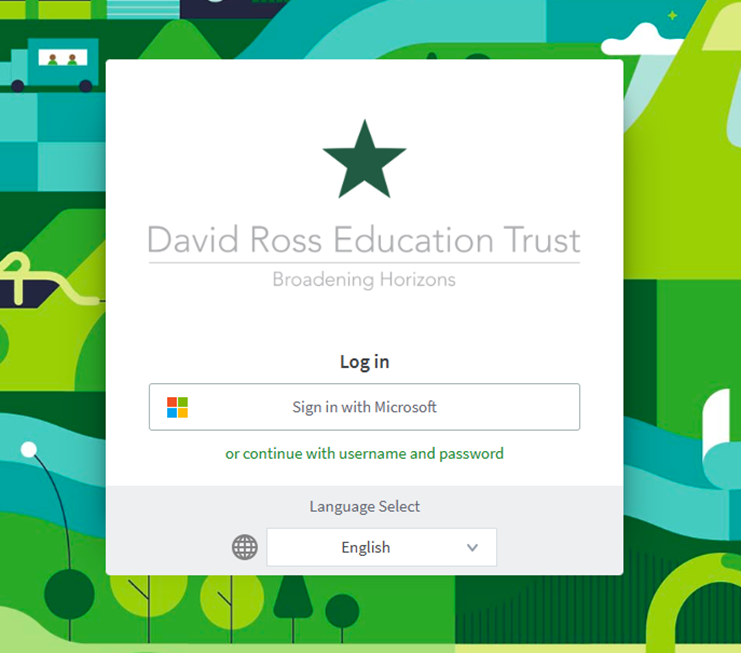
AI-generated content may be incorrect.

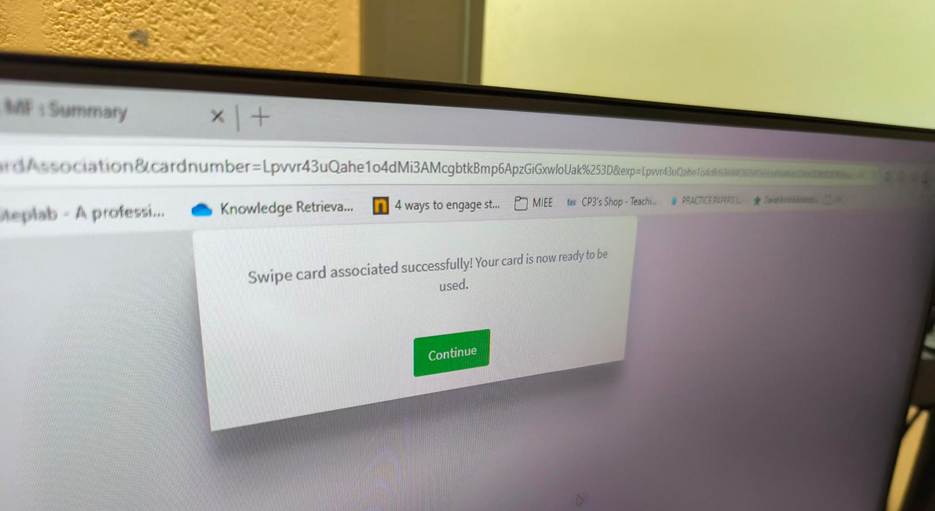
Once you see the confirmation screen, your card has been successfully registered. Please note that only one card can be registered per user. From now on, scanning your card will present your print and scan options. To log out, simply scan your card again.

Was this article helpful?

That’s Great!

Thank you for your feedback

Sorry! We couldn't be helpful

Thank you for your feedback

Let us know how can we improve this article!

Select at least one of the reasons
CAPTCHA verification is required.

Feedback sent

We appreciate your effort and will try to fix the article